A chat is a conversation thread. Each message that asks Okou to act starts a run inside that thread. Replying in the same chat keeps the thread's earlier messages and artifacts available as context; opening a new chat starts a separate context.
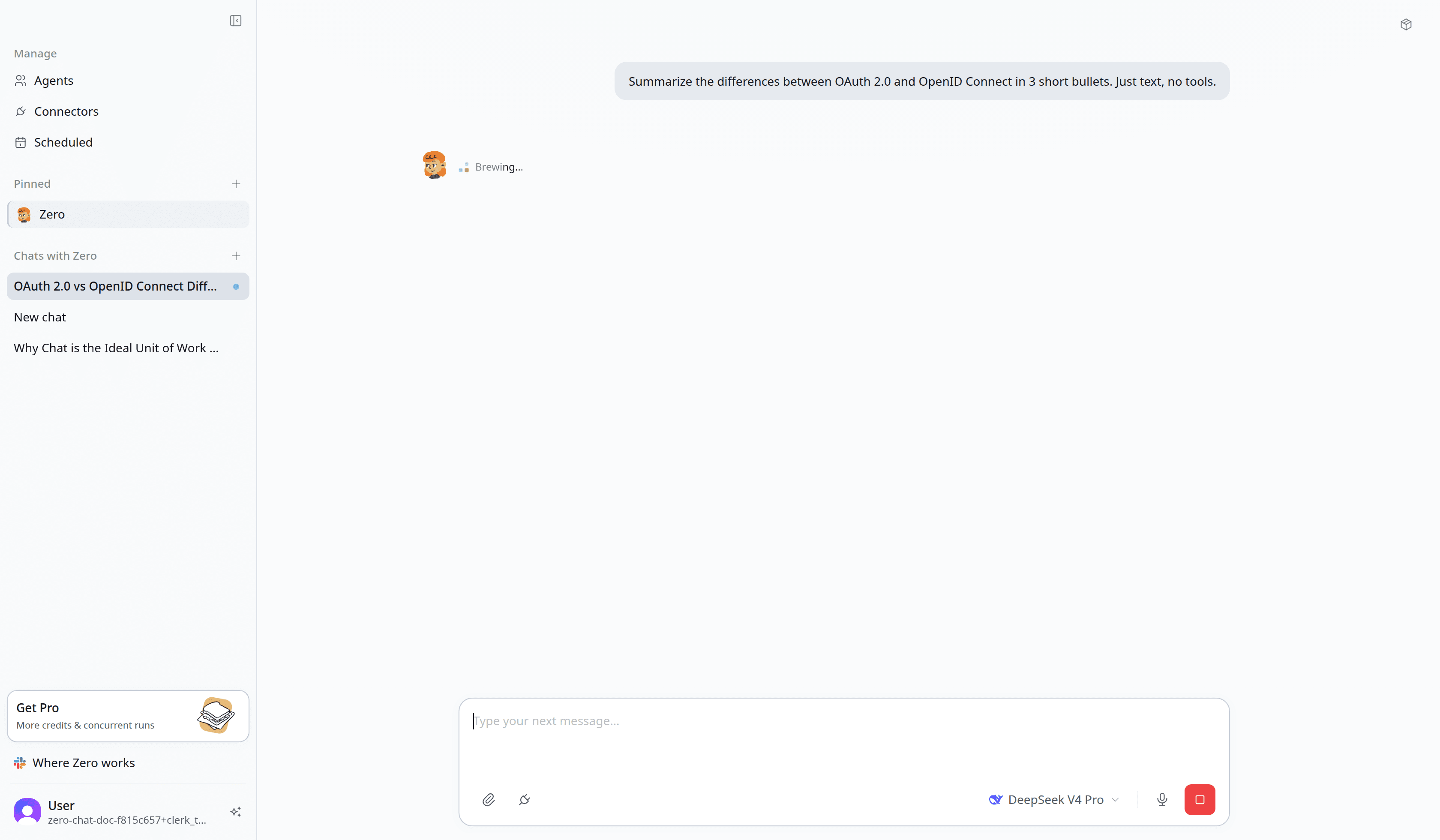
Why chats matter
- Context is thread-scoped. A run can use the messages and artifacts in its own chat. It does not automatically read another chat's history.
- Runs are inspectable. The thread shows the messages, tool activity, artifacts, status, and errors produced by its runs.
- Work can be redirected. You can stop an active run or send a follow-up. A follow-up sent while another run is active is queued and starts after the current run finishes.
How chats and runs start
- Opening a new conversation in the web app creates a new chat thread.
- Sending another task in that conversation starts another run in the same thread.
- A Slack conversation keeps context within its mapped Slack thread.
- An automation runs in the automation chat associated with its workflow and owner. Repeated firings of that workflow reuse that automation chat.
Different chat threads can make progress independently, subject to the workspace's concurrency limit. If all run slots are in use, a run can remain queued until a slot is available.
Continuing or starting fresh
Continue in the same thread when the next request depends on earlier messages, files, or decisions. Open a new thread when you want an independent context.
Channels are entry points to the same workspace, but they do not create one global conversation history. A new web, Slack, Telegram, or phone thread does not automatically import another thread's messages. When moving work to a new thread, include the context or artifact it needs.
Inspecting a run
Use the thread's activity or log control to inspect the run. It records the visible sequence of messages, tool activity, artifacts, status changes, and errors. This is the first place to check when a result is incomplete or a connector action did not happen.
Troubleshooting
| What you see | What to check or do |
|---|---|
| Queued | Another run in the thread is active, or the workspace has no free run slot. Wait for the active run to finish. A queued follow-up can be removed before it starts. |
| A Connect or Authorize card | The required account is not connected, or this agent lacks a required connector permission. Complete the card and choose only the access and duration the task needs. If the run does not resume, retry the request in the same thread. |
| Selected model is not available | The thread's model is not currently usable under the workspace's model policy or provider connection. Choose an available model in the composer, or reconnect the requested provider under Settings → Models. |
| Insufficient credits | The workspace cannot start more model work with its current balance. Open Billing to review the balance, top up, or change plan, then retry. |
| An attachment upload error | The file did not finish uploading, so it is not available to the run. Retry the upload before sending the message again. |
| A run is Failed | The run ended without a result. Open its visible error and activity log, correct the reported connector, permission, model, input, or service problem, then retry. |
When asking support for help, share the chat URL and the failed run's visible error. Never paste connector secrets or provider keys into the chat.
What's next
- See Permissions for what's enforced at the chat boundary.
- See Credits & billing for how chat cost is computed.
- See Automations for the recurring- and event-driven chat model.