A connector is just a tool Okou can pick up and use on your behalf. Slack, Notion, Gmail, GitHub, Linear, Stripe — once you connect one, Okou stops talking about your work and starts doing it.
Say you ask Okou, "Draft the launch announcement in Notion and drop the link in #marketing." With Notion and Slack connected, that isn't a hypothetical anymore. Okou opens Notion, creates the page, writes the draft, then posts it to Slack — the same way you would, just faster.
How connecting works
Okou can request a connector while it is working, or you can open Connectors from the workspace and set it up first. Two separate decisions are involved:
- Connect links or enables the current member's account for that service. OAuth and manually entered credentials belong to that member unless the connector explicitly says otherwise.
- Authorize grants an agent named connector permissions. A connected account is not automatically available to every agent, and authorizing an agent does not grant permissions that were denied.
An inline card can guide you through both steps. After the connection finishes, review the requested actions and choose an access duration. Okou can then continue the task with that agent.
Do not assume a teammate's connection gives you access to their account. Each member connects their own account where the service uses per-member credentials.
First connection checklist
- Open Connectors, choose Built-in, and search for the service.
- Select Connect and finish the provider's sign-in or credential flow.
- Choose the agent that needs the connector.
- Review its requested permissions and choose Allow for 1h, Allow for 24h, Allow for 7d, or Allow always as appropriate.
- Return to the original chat and retry only if the run did not resume.
If the account is connected but a task is still blocked, check both the agent authorization and the specific denied permission. Connection status alone is not proof that the requested action is allowed.
A taste of what Okou can do
A few examples of how connectors translate into actual work:
- Notion — create pages, update databases, file meeting notes, draft proposals, search across your workspace.
- Slack — send DMs, post to channels, summarize long threads, follow up on stale conversations.
- Gmail — read your inbox, surface what actually needs your attention today, and prepare replies as drafts in your account. Okou writes the draft; you press send.
- GitHub — open issues, comment on PRs, triage the backlog, draft release notes.
- Linear — file tickets, move tasks across statuses, generate sprint summaries.
- Stripe, HubSpot, Calendar, Drive, Sheets, Docs… — same idea, in whichever tool the work lives.
You never have to explain how a tool works. Okou already knows. You describe the outcome; it handles the clicks.
You choose what Okou can do
Authorizing a tool isn't all-or-nothing. For every connector, you pick which actions Okou is allowed to take — and you can tighten or loosen those choices any time from the agent's Authorization tab.
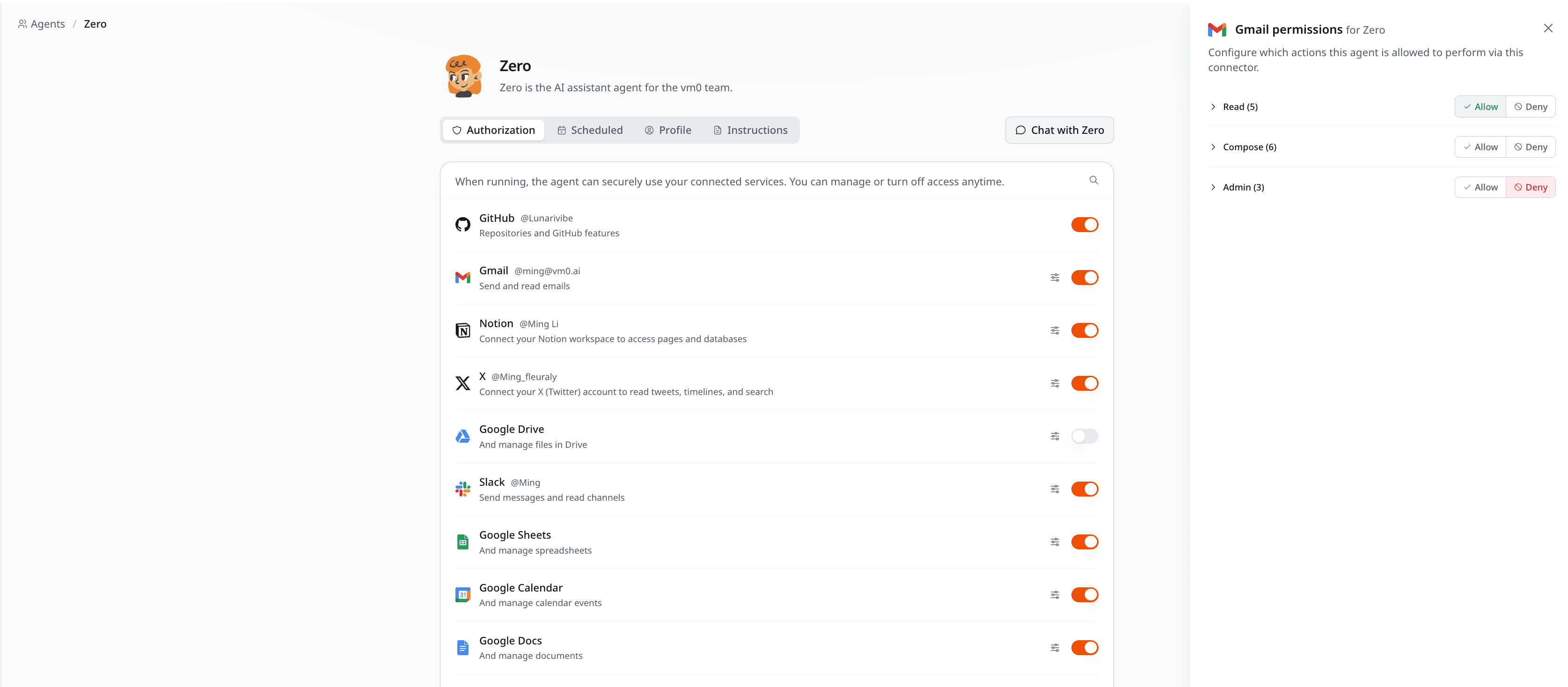
A few examples of how teams scope it:
- Gmail — let Okou read your inbox and draft replies, but never send anything out on your behalf.
- Slack — let Okou read channels and summarize threads, but block posting in your name.
- GitHub — let Okou open issues and comment on PRs, but deny anything destructive like force-pushing or deleting branches.
- Linear — let Okou create and update tickets, but not close or delete them.
- Notion — let Okou read pages and add comments, but block destructive updates to databases.
Access is enforced through named connector permissions. If an agent needs a permission that is not currently allowed, Okou requests it separately. Review or change the current grants from the agent's Authorization tab, and use the chat activity to verify the connector actions performed during that run.
Built-in and custom
Built-in connectors are maintained by Okou and appear under the Built-in tab. The live connector picker in your workspace is the authoritative catalog because availability can change as connectors are added or configured.
If the service is not listed, an org admin can register a custom connector. A custom connector defines the allowed HTTPS destination and how credentials are injected. Members then connect their own credential and authorize the agents that need it.
A note on access
Credentials are stored on the platform and injected into matching outbound requests at the network boundary; they are not exposed to agent code as environment variables. Connector permissions are separate from the credential and can be denied or time-boxed.
Disconnecting a member's connection removes that credential from future runs. Removing an agent authorization prevents that agent from using the connector, without disconnecting the member's account for every other authorized agent.
See Permissions for the complete access model.
What's next
- Catalog — every tool Okou supports out of the box.
- Custom connectors — add anything else.